Some people choose to install Edge and then Edge Beta or Edge Dev to preview prerelease features. Those are all separate installs that can be found here – Become a Microsoft Edge Insider
There is a new feature in Edge version 145 called Enterprise Preview that allows prerelease builds directly in Edge Stable. Meaning: You don’t need to install Edge Beta to get Edge Beta.
NOTE: The cool kids bookmark the Microsoft Edge release schedule webpage.
The two settings needed for this to work:
TargetChannel – Target Channel override (per channel)
EdgePreviewEnrollmentType – Edge Preview Enrollment Type
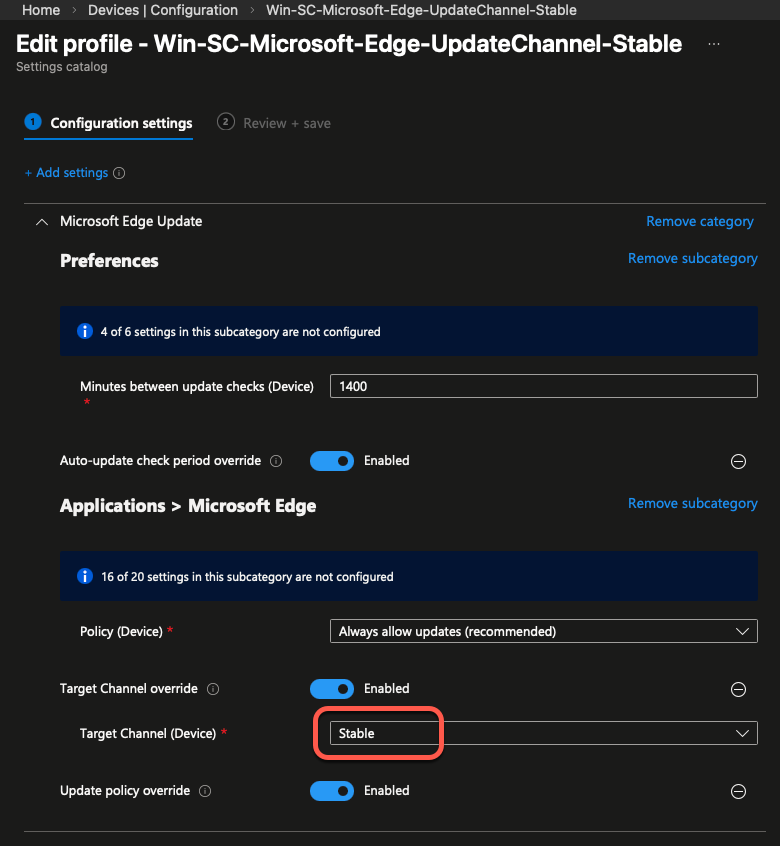
First, here is the policy that is used in my environment to control Edge channel versions.
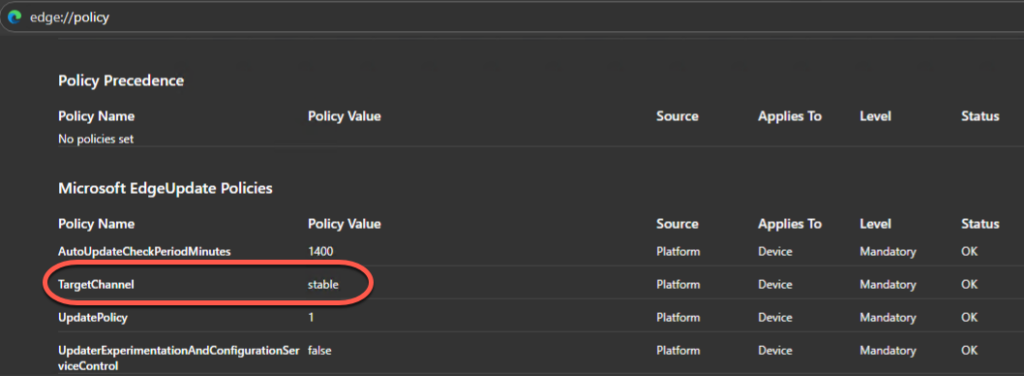
Here are the results of the above policy
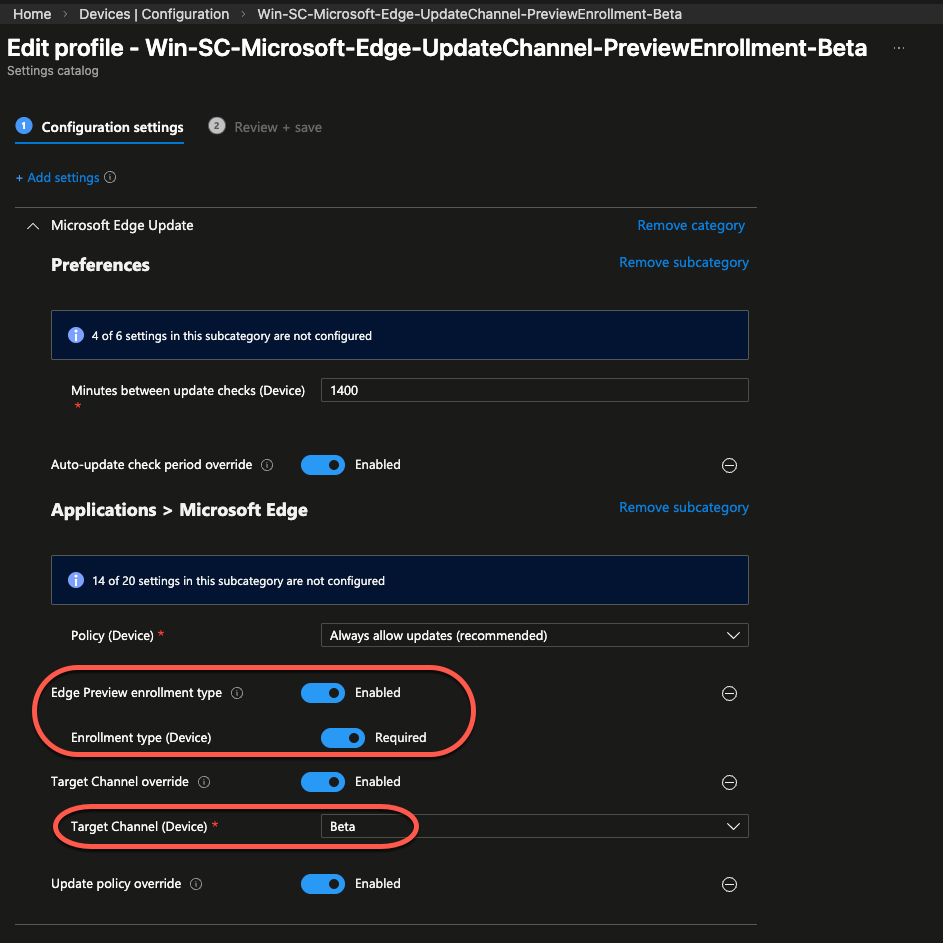
I have created a new policy to get the installed Stable version of Edge moved to Beta channel.
Set the TargetChannel to Beta and then set the EdgePreviewEnrollmentType to require enrollment.
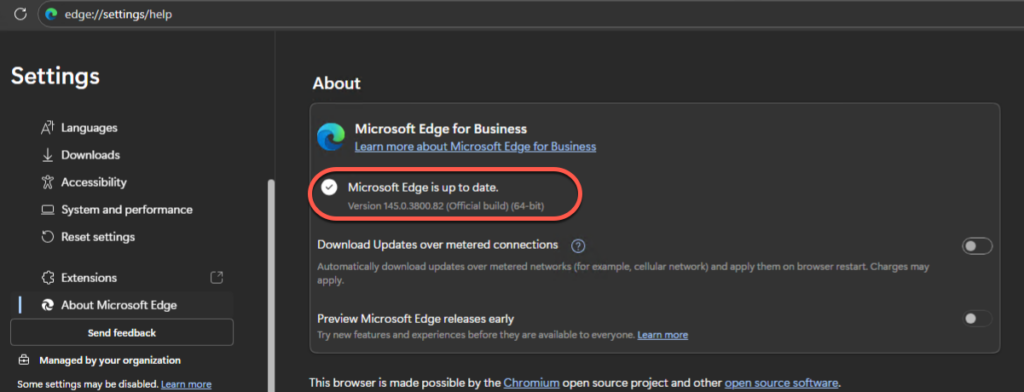
Here is my system before I assigned the new PreviewEnrollment policy. Notice it says stable channel and is at the current version.
Here it is after the PreviewEnrollment policy was assigned. Edge updated and requested a restart to the browser.
NOTE: The devices targeted to the PreviewEnrollment policy must be excluded from the Stable Channel policy.


Notice that Edge is now one version higher than when it was before this policy. Also, notice the icon says Beta and that the preview release is mandatory.
The Beta tag only shows up in the Edge About section. The Edge application icons remain the same.
This is a great policy that pretty much forces your early adopters to actually be early adopters!
In my environment I have two policies that control Edge Channel
Win-SC-Microsoft-Edge-UpdateChannel-Stable – This is assigned to All Windows Devices excluding devices in the PreviewEnrollment group.
Win-SC-Microsoft-Edge-UpdateChannel-PreviewEnrollment-Beta – This is assigned to the PreviewEnrollment group
This is much easier than instructing test users to install Edge Beta and set it as their default browser!
But wait, there’s more! Important caveats:
If you remove the device from the PreviewMode, it will go back to Stable once Microsoft releases a Stable version that is greater than the installed Beta version.
One way around that is to rollback Edge to a particular version. IMPORTANT: Remove the device from the Edge Rollback policy once complete. The Edge browser will no longer update if the TargetVersionPrefix policy is applied.


