Full disclosure: Grok Bot, my AI assistant, wrote this post from my lab notes, screenshots, and a couple of browsers I rolled back on purpose. The testing, the gotchas, and the sarcasm are all mine.
Browsers are the thing every user has open all day, and they’re the thing attackers go after. When Google or Microsoft ships a fix for a zero-day that’s already being exploited, “it’ll update eventually” isn’t a plan. The patch can download in minutes and then sit there doing nothing for a week because somebody hasn’t closed their 47 tabs since the last Patch Tuesday.
So this post covers three browsers, all managed with Intune:
- Microsoft Edge: everything lives in the settings catalog. Nice.
- Google Chrome: the relaunch settings are in the settings catalog, but the updater settings are ADMX only. Less nice.
- Mozilla Firefox: ADMX only, no forced relaunch, and no real rollback. Firefox is the odd one out.
For each one I’ll show the settings, what the user actually sees, and how to roll back when an update breaks something. And it will, eventually.
One warning up front: some of the values below are for quick testing in a lab. I’ll call those out every time and give you my suggested enterprise value right next to them.
Microsoft Edge
Edge is the easy one. The relaunch settings (Microsoft Edge > Relaunch) and the Edge Update settings (Microsoft Edge Update > Applications > Microsoft Edge) are all in the settings catalog.
The update and relaunch settings
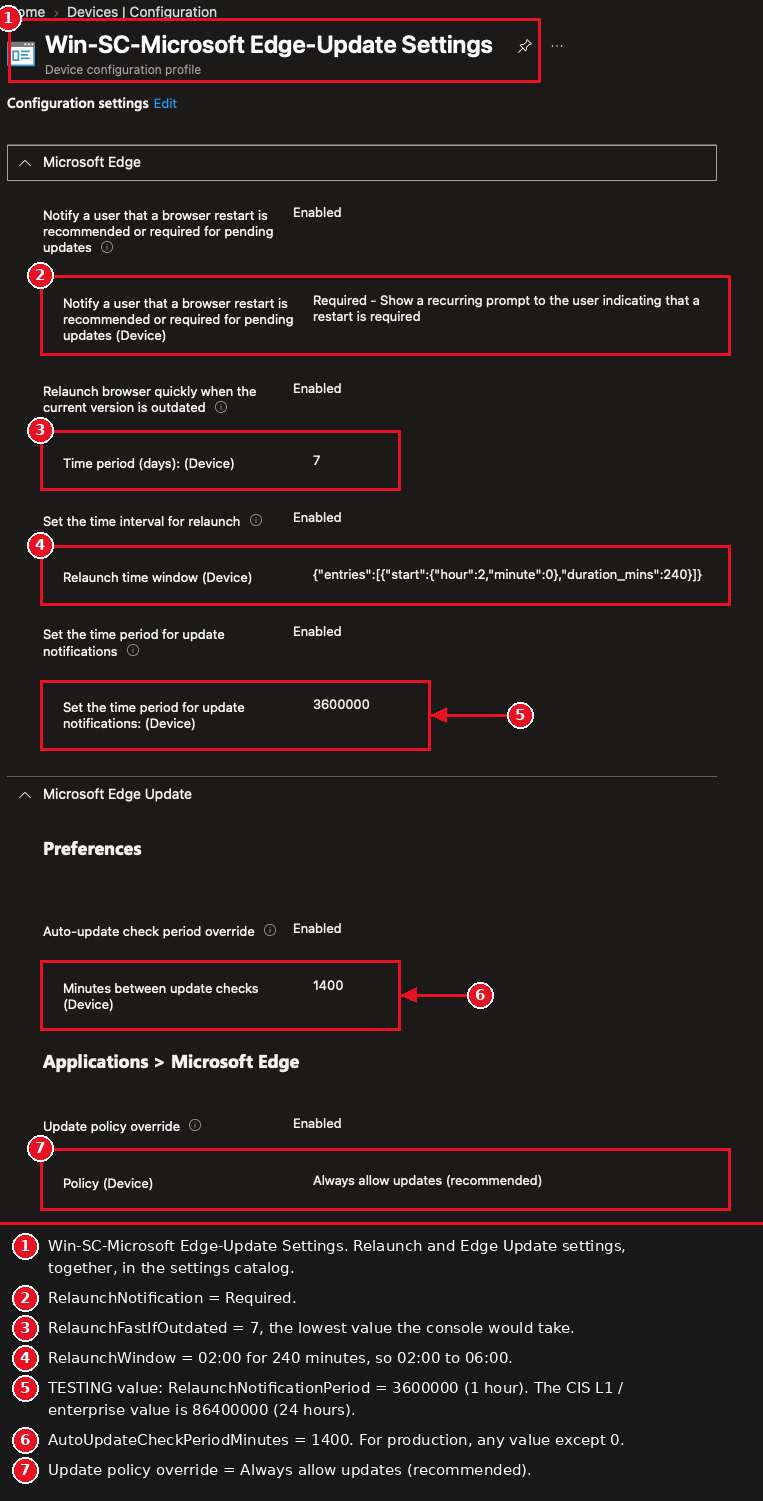
Here’s the lab testing policy, Win-SC-Microsoft Edge-Update Settings. It has the relaunch settings and the Edge Update settings in one place:
| Setting (console label) | Policy name | Testing (lab) | Enterprise recommendation |
|---|---|---|---|
| Notify a user that a browser restart is recommended or required for pending updates | RelaunchNotification | Required | Required (CIS L1 recommends this) |
| Set the time period for update notifications | RelaunchNotificationPeriod | 3600000 (1 hour) | 86400000 (24 hours, CIS L1 recommends this) |
| Relaunch browser quickly when the current version is outdated | RelaunchFastIfOutdated | 7 | 7 |
| Set the time interval for relaunch | RelaunchWindow | 02:00 to 06:00 JSON | Overnight window |
| Auto-update check period override | AutoUpdateCheckPeriodMinutes | 1400 | Any value except 0 |
| Update policy override | Update | Always allow updates (recommended) | Always allow updates or Automatic silent updates only (never Updates disabled) |
A few things worth explaining.
RelaunchNotificationPeriod is how long, in milliseconds, the user gets nagged before Edge restarts on its own. The default is 604800000, which is one week. For testing I used 3600000, which is 1 hour. For production, use 86400000 (24 hours). That’s the value CIS L1 recommends, with RelaunchNotification set to Required. If 24 hours sounds harsh for your users, take that up with CIS.
RelaunchNotification set to Required means the user gets a recurring prompt that Edge will restart when the period runs out. With Recommended, the user can dismiss it and defer forever. Don’t use Recommended. The user’s session is restored when the browser restarts.
RelaunchFastIfOutdated is the safety net for stragglers, and it confuses people, so here’s the deal. If a restart is pending and the version you’re running is more than N days old, measured from when that build was last served to clients, Edge ignores your RelaunchNotificationPeriod and drops it to 2 hours.
Does it matter when your production period is already 24 hours? Yes, and they work together:
- A normal device gets the update, the 24-hour clock starts, and it restarts within a day. RelaunchFastIfOutdated never kicks in.
- A laptop that was shut off in a drawer for a week wakes up running a build that’s 7+ days old. Now the user gets 2 hours, not 24.
7 is the lowest value the console would take, so that’s what I used for testing, and I’d leave it at 7 in production too.
RelaunchWindow doesn’t force anything by itself. It defers the end of the notification period so it lands inside the window you set. Mine is:
{"entries":[{"start":{"hour":2,"minute":0},"duration_mins":240}]}That’s 02:00 for 240 minutes, so 02:00 to 06:00. If someone ignores the prompt all day, the forced restart happens overnight instead of in the middle of their Teams call. Microsoft’s own warning applies: setting this can delay updates. That’s the trade I’m happy to make, because forcing a restart mid-workday is how you make people grumpy. Microsoft’s docs are explicit on the JSON: the policy can accept multiple entries, but only the first one is used. Edge ignores the rest. Nice.
AutoUpdateCheckPeriodMinutes (Auto-update check period override) controls how often Edge Update looks for updates. The default is every 10 hours. I used 1400 for testing. For production, use any value except 0. CIS flags 0 for Chrome’s version of this setting (2.1.2, below).
Update policy override is set to Always allow updates (recommended). It has to allow updates, or Edge Update won’t accept anything and rollback never happens. In production, use Always allow updates or Automatic silent updates only. Never Updates disabled.
Microsoft doc bug
The RelaunchFastIfOutdated page says “If the RelaunchNotification policy is set to 1 (‘Required’)…” But the RelaunchNotification page maps Recommended = 1 and Required = 2. The RelaunchNotification page is the right one. If you’re setting this through the registry or a script, Required is 2.
What users see (the FAQ you’re going to get)
This is the part that actually matters, because your help desk is going to get these questions whether you document them or not.
Q: What’s the first thing a user notices?
Not a big scary dialog. In both Edge and Chrome, the app menu changes to indicate that a relaunch is needed once one third of the notification period has passed. The indicator changes color at two thirds, and again when the full period is up. The Required prompts follow that same schedule. With the CIS 24-hour period, that’s 8 hours, 16 hours, and 24 hours after the update is ready.
Q: What does the restart prompt look like, and what happens when time is up?
With RelaunchNotification set to Required, Edge shows a recurring warning that the browser will be restarted automatically once the notification period passes. Chrome does the same: a recurring warning that a relaunch will be forced once the period passes. When that period ends, the browser restarts on its own. The user’s session is restored after the restart.
Q: Why didn’t the prompt show up right after the update installed?
Because it isn’t supposed to. The Required prompts follow the same one-third, two-thirds, and end-of-period schedule as the app-menu indicator. Users get a quieter signal first, and the recurring warning follows as the deadline gets closer.
Q: Do I lose my tabs?
No. The user’s session is restored after the restart.
Q: Why did the browser restart at 02:00?
That’s RelaunchWindow. When RelaunchNotification is Required, the browser is forcibly restarted at the end of the notification period. RelaunchWindow defers that deadline so it falls inside the window you set. With the JSON above, that’s 02:00 to 06:00. If you don’t set a window, Edge and Chrome use the whole day, so the restart happens as soon as the period runs out.
Q: My coworker got a week of warnings, and I got 2 hours. Why?
That’s RelaunchFastIfOutdated. If a restart is already pending and the build you’re running is older than N days, measured from when that version was last served to clients, both Edge and Chrome override RelaunchNotificationPeriod to 2 hours. At the end of those 2 hours, the browser is forced to restart when RelaunchNotification is Required. In this lab, N is 7.
Edge rollback
Eventually an update breaks a line-of-business app, and someone asks you to “just put it back.” Edge makes that pretty painless.
Keep the rollback policy lean
The update settings policy already sets Update policy override, the check period, and all the relaunch settings.
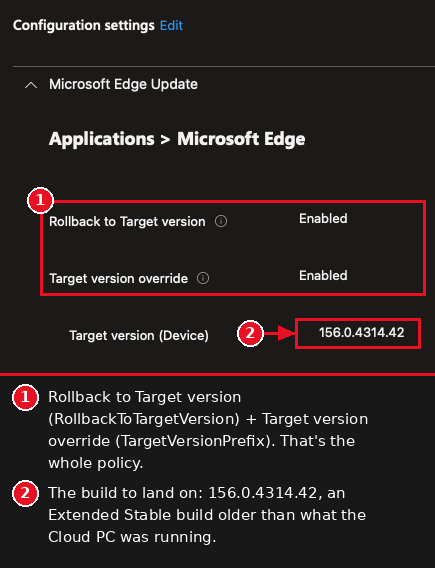
The rollback policy should be an add-on with exactly two settings:
| Setting (console label) | Policy name | Value |
|---|---|---|
| Rollback to Target version | RollbackToTargetVersion | Enabled |
| Target version override | TargetVersionPrefix | The build you want, e.g. 156.0.4314.42 |
These live under Microsoft Edge Update > Applications > Microsoft Edge in the settings catalog.
Two rules from Microsoft’s rollback docs:
- Update policy override must allow updates. It needs to be Always allow updates or Automatic silent updates only. If it’s set to Updates disabled, Edge Update won’t accept anything, and rollback never happens.
- Rollback happens at the next update check. Not when the policy lands. If you don’t want to wait for the check period, open edge://settings/help (About Microsoft Edge), which forces a check.
How my test actually went
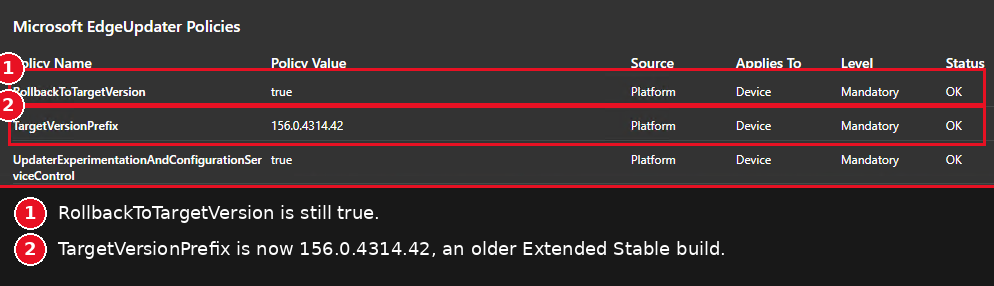
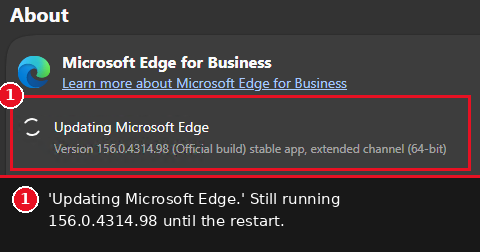
Opened About, and Edge started pulling the older build:
Then it asked for a restart:
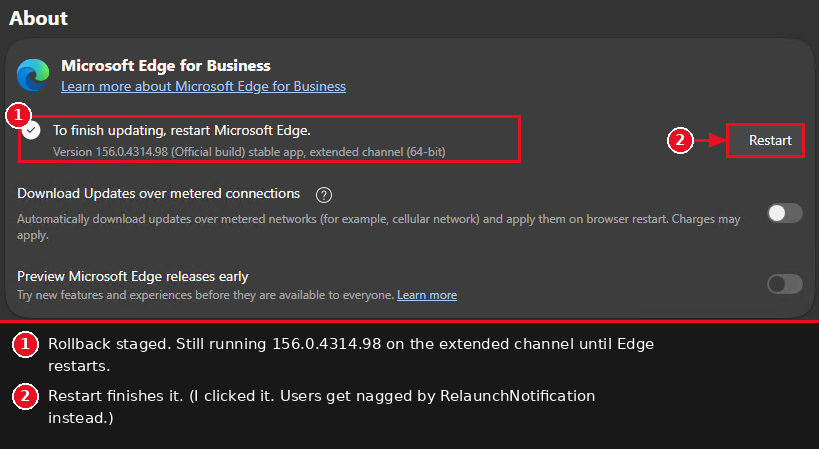
I clicked Restart, and done:
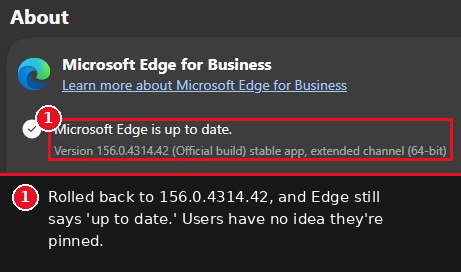
Look at that: “Microsoft Edge is up to date.” It isn’t. It’s pinned to an older build, and Edge is perfectly happy about it. Users have no idea. That’s great for a quiet rollback, and terrible if you forget the policy is there.
Don’t leave the rollback in place
When the issue gets fixed, take the rollback policy off. Otherwise, you’re sitting on an old build with known vulnerabilities, and About is telling everyone they’re up to date. Microsoft says the same thing: rollback is a temporary fix, and older versions risk exposure to known security issues.
For production rollbacks
Microsoft calls out a real risk of data loss with rollback. For production, they recommend:
- ForceSync: forces Sync on for Entra users, so their browsing data comes back after a downgrade. Without Sync, there’s a risk of permanent data loss.
- UserDataSnapshotRetentionLimit: Edge keeps a version-stamped snapshot of the user data folder on each upgrade, and rollback restores the matching one. The default is 3 snapshots, configurable from 0 to 5.
- Required relaunch: Microsoft recommends forcing a restart after rollback, which your relaunch settings already do.
I didn’t bother with ForceSync or snapshot settings in the lab, but I would in production.
Google Chrome
Chrome does the same things as Edge, but Google split them up, and that’s annoying.
- Relaunch settings — RelaunchNotification, RelaunchNotificationPeriod, RelaunchFastIfOutdated, RelaunchWindow — are in the settings catalog, under Google > Google Chrome.
- Google Update settings (rollback, target version prefix, Update policy override, and the check period) are ADMX only. You have to import Google’s templates first (steps below). Edge does all of this in the settings catalog. Google, come on.
The existing CIS update policy
I already had a CIS-based ADMX policy setting Update policy override and the check period:
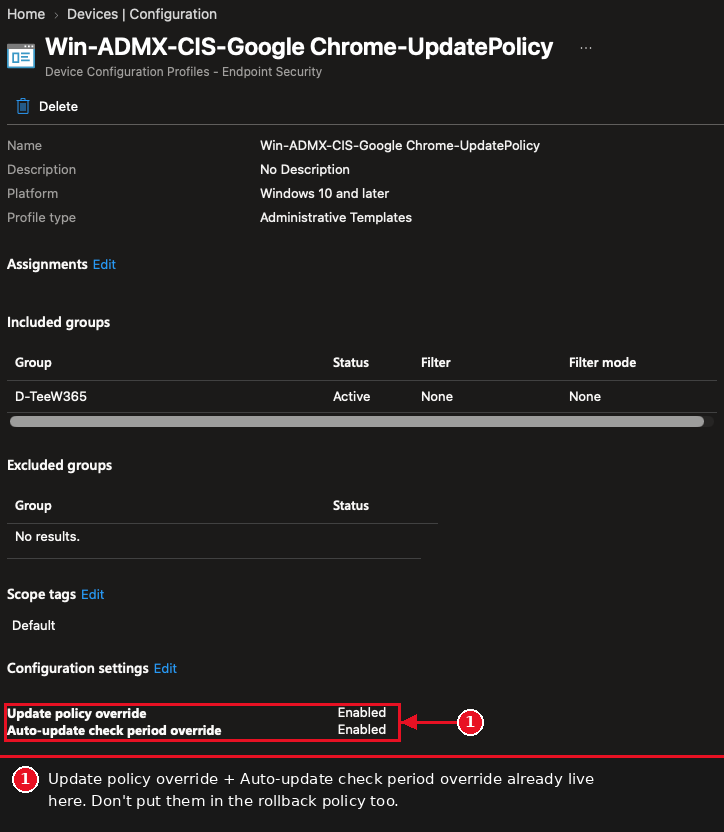
Make sure Update policy override isn’t set to disabled or manual, or rollback won’t fire.
CIS L1 recommends the following:
- 2.1.1: Update policy override set to Enabled with Always allow updates (recommended) or Automatic silent updates.
- 2.1.2: Auto-update check period override set to any value except 0.
Relaunch settings (settings catalog)
The Win-SC-Google Chrome-Update Settings policy:
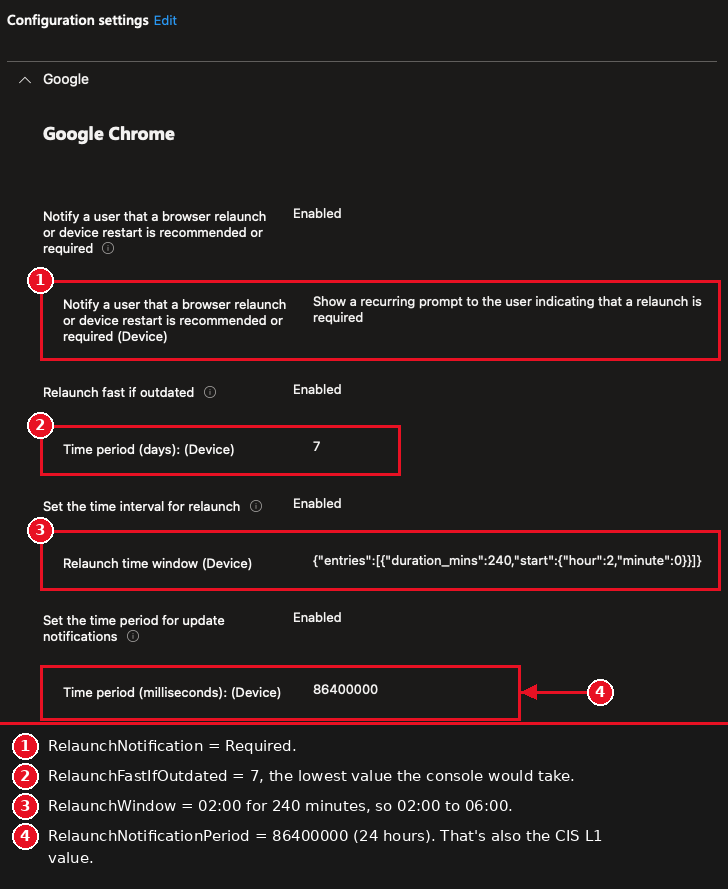
| Setting (console label) | Policy name | Testing (lab) | Enterprise recommendation |
|---|---|---|---|
| Notify a user that a browser relaunch or device restart is recommended or required | RelaunchNotification | Required | Required (CIS L1 recommends this) |
| Set the time period for update notifications | RelaunchNotificationPeriod | 86400000 (24 hours) | 86400000 (CIS L1 recommends this) |
| Relaunch fast if outdated | RelaunchFastIfOutdated | 7 | 7 |
| Set the time interval for relaunch | RelaunchWindow | 02:00 to 06:00 JSON | Overnight window |
Chrome rollback (ADMX)
The Win-ADMX-Google Chrome-Update Rollback policy is an imported administrative template, under \Google\Google Update\Applications\Google Chrome:
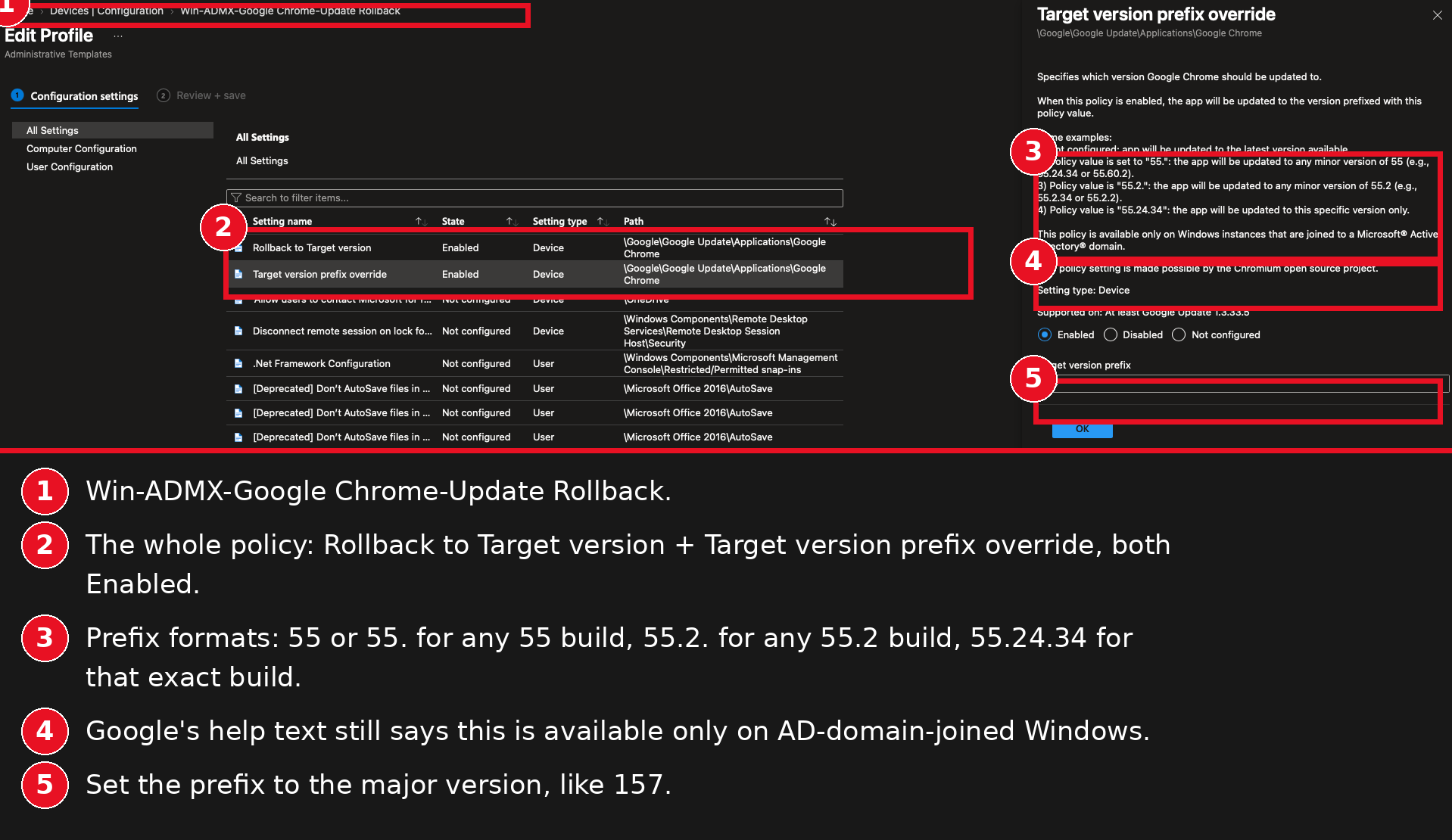
| Setting (console label) | Policy name | Value |
|---|---|---|
| Rollback to Target version | RollbackToTargetVersion | Enabled |
| Target version prefix override | TargetVersionPrefix | 157 (the major version) |
Set TargetVersionPrefix to the major version you want, like 157. Google’s help text shows the prefix formats: 55 or 55. for any 55 build, 55.2. for any 55.2 build, and 55.24.34 for that exact build. Use the major version, or a prefix that ends in a dot, and let Google serve a build it still has published.
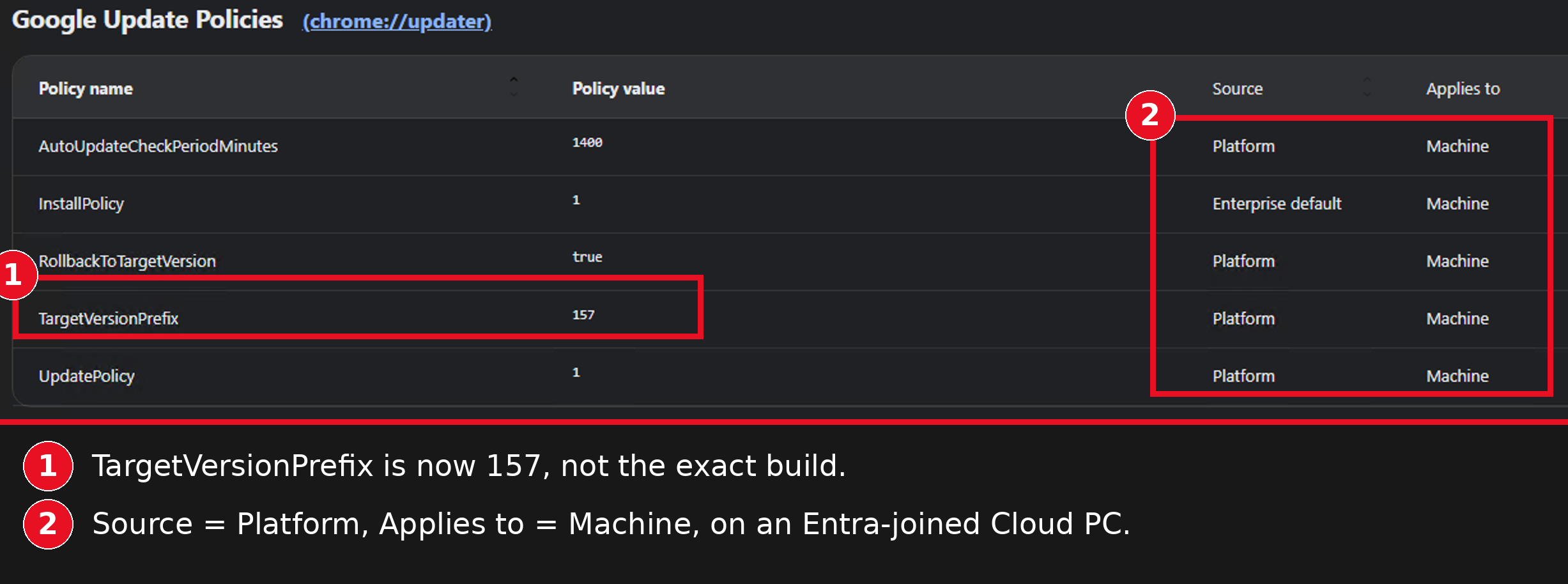
chrome://updater (also linked from chrome://policy under Google Update Policies) showed the prefix applied:
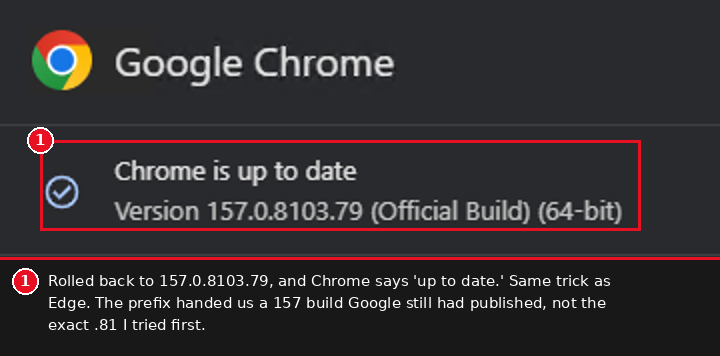
And About landed on 157.0.8103.79:
Two warnings from Google, and one thing I saw in the lab:
- Data loss. Google recommends turning on Chrome sync or Roaming User Profiles before rolling back. If you don’t, users will irrevocably lose all browsing data. Same idea as Edge’s ForceSync advice.
- “This policy is available only on Windows instances that are joined to a Microsoft Active Directory domain.” It’s in the help text on both settings. My Cloud PC is Entra joined, not AD joined. It rolled back anyway. chrome://policy and chrome://updater both showed Source = Platform, Applies to = Machine. Google’s AD-joined-only warning is still in the help text, but in this test the policy applied and the downgrade happened. I’m not going to tell you to ignore Google’s warning in production, but I am going to tell you what I saw.
Same cleanup as Edge: when you’re done, take the rollback policy off.
Mozilla Firefox
Firefox is the odd one out. It’s all ADMX, there’s no forced relaunch, and there’s no real rollback.
The CIS update settings
CIS L1 covers Firefox updates with four settings. The benchmark is written for ESR, but the settings are the same on regular Firefox.
| CIS | Setting (console label) | Policy name | Value |
|---|---|---|---|
| 1.1.24 | Application Autoupdate | AppAutoUpdate | Enabled |
| 1.1.25 | Background updater | BackgroundAppUpdate | Enabled |
| 1.1.34 | Disable System Addon Updates | DisableSystemAddonUpdate | Disabled |
| 1.1.36 | Disable Update | DisableAppUpdate | Disabled |
Notice the two “Disable” settings are set to Disabled, not left Not configured. That’s the CIS way, and it stops some other policy from quietly turning updates off.
BackgroundAppUpdate is the one that makes Firefox aggressive. It lets Firefox install updates even when Firefox isn’t running, without the user approving anything (Windows only). It does nothing if DisableAppUpdate or AppAutoUpdate turns updates off. That matters more for Firefox than the others, because:
No forced relaunch
There’s no Firefox equivalent of RelaunchNotification, RelaunchNotificationPeriod, or RelaunchWindow, and CIS doesn’t have a relaunch setting for Firefox either. You can’t force a restart. Background updates are your best friend here, because a closed browser updates without anyone noticing.
Building the policy
The Win-ADMX-CIS-Mozilla Firefox-UpdatePolicy policy. The settings are under Computer Configuration > Mozilla > Firefox, in the root of the Firefox folder, not in a subfolder. Or just type “Autoupdate” or “Disable Update” in the search box.
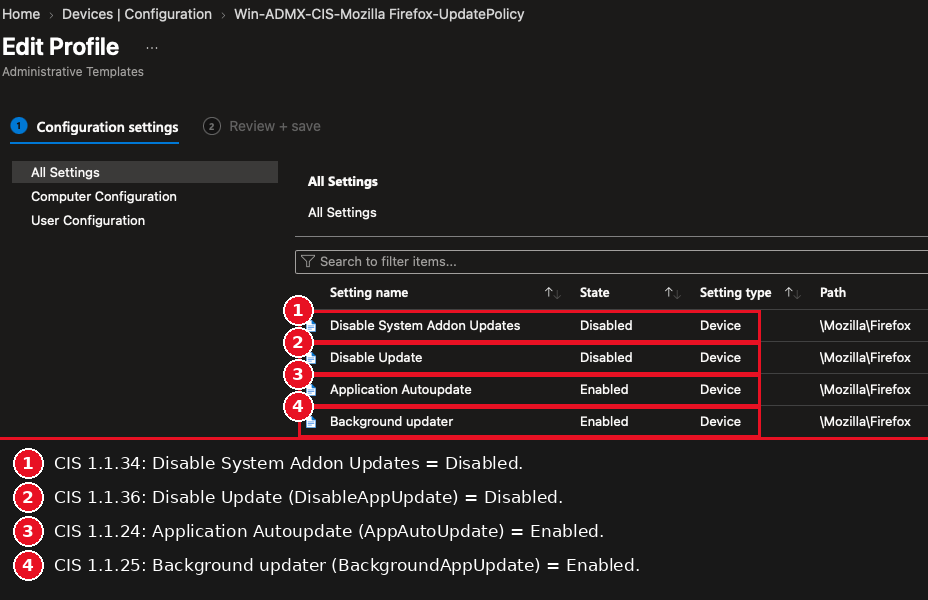
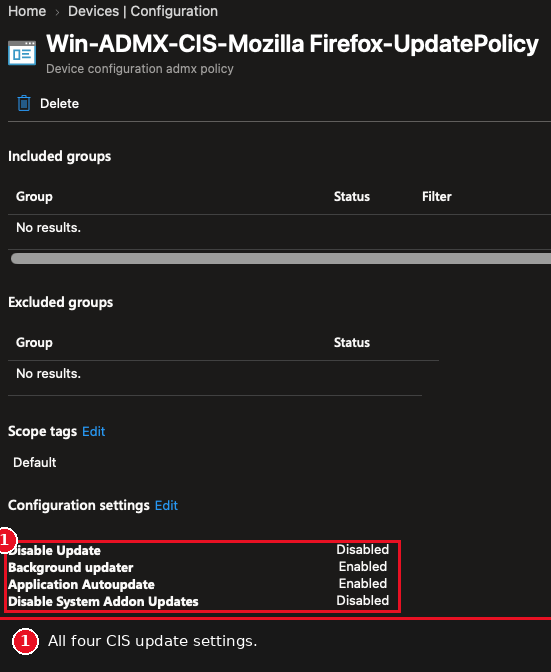
Sync, and check about:policies on the device. Mine showed all four CIS values as Active:
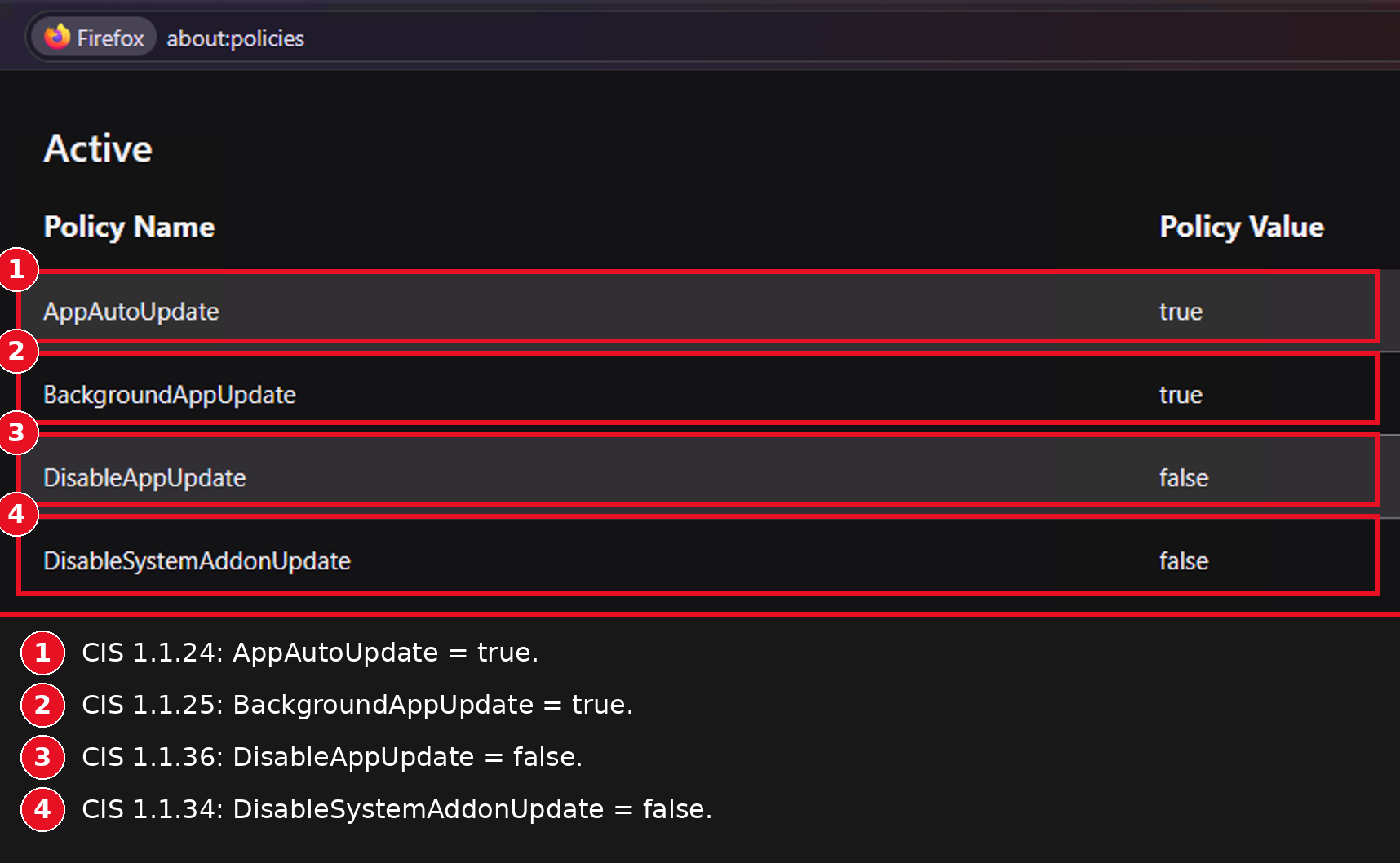
AppAutoUpdate true, BackgroundAppUpdate true, DisableAppUpdate false, and DisableSystemAddonUpdate false. That’s the CIS set, applied.
Rollback? Not really.
Firefox has AppUpdatePin (“Prevent Firefox from being updated beyond the specified version”). You give it a version that ends in a dot, like 146. for all minor versions of 146, or 146.0. for patch versions of 146.0. Two catches:
- It pins, it doesn’t downgrade. Mozilla’s docs only talk about stopping updates past a version. There’s nothing about going backward.
- If you pin to a version that never ships, Firefox updates right past it.
To actually go back, you uninstall and install the older build. Then Firefox’s profile downgrade protection kicks in and refuses to open a profile last used by a newer version. Get around it by launching once with --allow-downgrade or by setting the MOZ_ALLOW_DOWNGRADE environment variable. According to Mozilla staff on Mozilla Support, you only need it once, and after that the profile opens normally.
So the Firefox rollback section is: you can’t, and here’s what you do instead.
ADMX import, step by step
Chrome’s updater settings and everything for Firefox need imported ADMX templates. Here’s my Import ADMX list with everything in place:
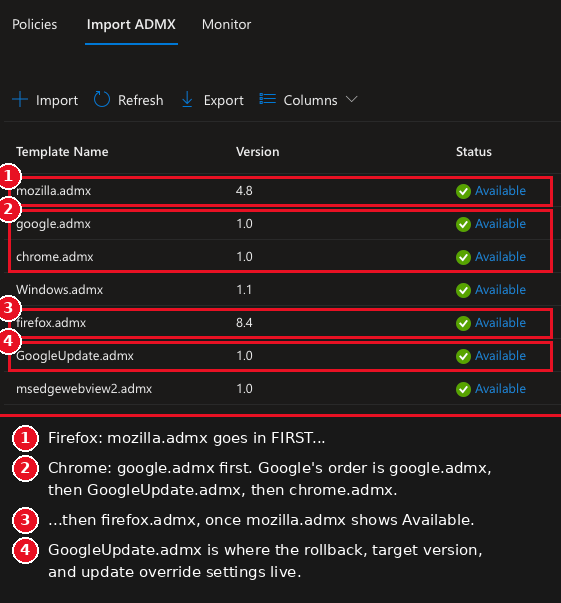
The import lives at Devices > Configuration > Import ADMX tab > Import. Order matters, because some templates depend on others. Import a template without its dependency, and the import fails with a missing namespace error.
Microsoft’s limits: it’s still preview, up to 20 ADMX files, 1 MB max each, one ADML per ADMX, and only en-US ADML files. Some templates also need Windows.admx imported first. Mine’s in the list for that reason.
Firefox
- Download the latest
policy_templates_vX.X.zipfrom the Mozilla policy-templates releases and unzip it. - Grab
windows\mozilla.admx,windows\firefox.admx, and their en-US ADML files:windows\en-US\mozilla.admlandwindows\en-US\firefox.adml. - In Intune, go to Devices > Configuration > Import ADMX > Import.
- Import
mozilla.admx+mozilla.admlfirst. Firefox’s template depends on it. - Wait until the status says Available. Hit Refresh a couple of times, because it can take a minute.
- Import
firefox.admx+firefox.adml, and wait for Available again.
Chrome
- Download Google’s templates. Google’s Intune page links the Chrome ADMX templates and the Google Update template.
- Import
google.admx+google.admlfirst. Skip it, and you get “ADMX file referenced not found NamespaceMissing:Google.Policies. Please upload it first.” - Import
GoogleUpdate.admx+GoogleUpdate.adml. This one has the rollback, target version, and update override settings. - Import
chrome.admx+chrome.adml. - Wait for Available between each one.
Build the policy
- Go to Devices > Configuration > Create > New policy.
- Platform: Windows 10 and later. Profile type: Templates > Imported Administrative templates (Preview).
- Name it. I use
Win-ADMX-<vendor> <app>-<purpose>, e.g., Win-ADMX-CIS-Mozilla Firefox-UpdatePolicy. - On Configuration settings, go to Computer Configuration > Mozilla > Firefox (or Google > Google Update > Applications > Google Chrome for Chrome rollback), or use the search box.
- Then verify on the device with about:policies (Firefox) or chrome://policy (Chrome).
Wrap-up: recommended enterprise values
| Edge | Chrome | Firefox | |
|---|---|---|---|
| Update engine | Update policy override: Always allow or Automatic silent only (never Updates disabled) | Update policy override: Always allow or Automatic silent (CIS L1 recommends this) | AppAutoUpdate Enabled (CIS L1), DisableAppUpdate Disabled (CIS L1) |
| Update check | AutoUpdateCheckPeriodMinutes: never 0 | Check period: any value except 0 (CIS L1 recommends this) | BackgroundAppUpdate Enabled (CIS L1) |
| Relaunch prompt | RelaunchNotification Required (CIS L1 recommends this) | RelaunchNotification Required (CIS L1 recommends this) | No policy exists |
| Relaunch deadline | RelaunchNotificationPeriod 86400000 (CIS L1 recommends this) | RelaunchNotificationPeriod 86400000 (CIS L1 recommends this) | No policy exists |
| Stragglers | RelaunchFastIfOutdated 7 | RelaunchFastIfOutdated 7 | n/a |
| Restart window | RelaunchWindow overnight (2 AM to 6 AM) | RelaunchWindow overnight (2 AM to 6 AM) | n/a |
| Add-ons | n/a | n/a | Disable System Addon Updates Disabled (CIS L1) |
| Rollback | RollbackToTargetVersion + TargetVersionPrefix, settings catalog | RollbackToTargetVersion + TargetVersionPrefix, ADMX only. Use a bare major prefix (e.g. 157), not the exact build. Worked on an Entra-joined Cloud PC in this test; Google’s help text still says AD-domain-joined only. | None. AppUpdatePin pins only; reinstall plus --allow-downgrade |
CIS sources: Microsoft Edge, Google Chrome, Mozilla Firefox.
Short version: Edge is easy, Chrome makes you import templates for half of it, and Firefox makes you hope your users close their browser. Set the relaunch settings to Required and 24 hours, keep the overnight window, build rollback as a lean add-on, use a version prefix for Chrome (not the exact build), and take the rollback policy off when you’re done. And keep that mouse moving counterclockwise.
Resources
Browser favorites the cool kids use.
Microsoft Edge
- Microsoft Edge policy documentation
- Microsoft Edge release notes (Stable)
- Microsoft Edge release schedule
- Download Microsoft Edge for Business (policy templates)
- CIS Microsoft Edge benchmark
Google Chrome
- Chrome Enterprise policy list
- Chrome Enterprise release notes
- Chrome release schedule
- Chrome Enterprise download (policy templates)
- CIS Google Chrome benchmark
Mozilla Firefox
- Firefox administrator reference
- Mozilla policy-templates on GitHub (includes the ADMX download in Releases)
- Firefox release notes
- CIS Mozilla Firefox benchmark